You're in! Here's what's next.
Your account is confirmed and a workspace and project are already waiting for you. You're just one login away from your first conversation with BB.
The fastest way to get going: just log in and start chatting
Beyond Better Chat runs right in your browser — no install required. A default workspace and project have already been set up for you.
Log In to Beyond Better Chat →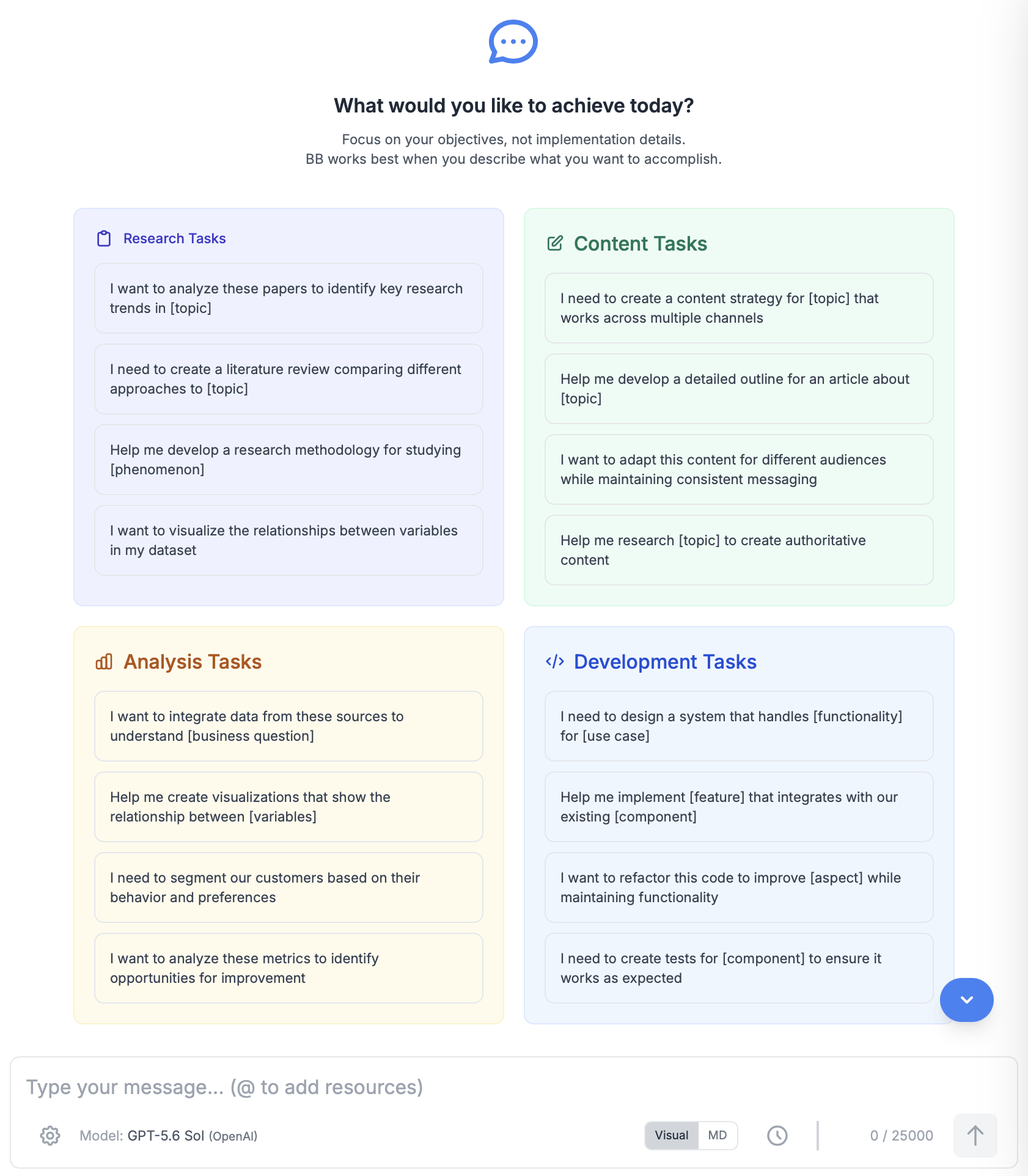
Three steps to your first result
Log in
Head to chat.beyondbetter.app and sign in with the account you just confirmed. Your workspace and first project are already there, waiting for you.
Connect a data source (recommended)
You can start chatting right away, but BB does its best work when it has something to work with. Give your project a data source so BB can read and write real files and documents:
- Have files on your computer? Install BB Bridge and pair it with your account. It keeps a secure, outbound-only connection open so BB Cloud can read (and optionally edit) an approved folder on your machine — live, while you keep working from the browser.
- Prefer cloud documents? Connect a Google Docs, Sheets, or Notion data source directly from your project settings — no local install needed at all.
Start chatting
Tell BB what you're trying to achieve — not the step-by-step process. Focus on your objective, and BB will figure out the how.
Want more control? Advanced options
Run your own Local Hub
Prefer to keep everything — data and processing — on your own machine? Download the Beyond Better desktop app to run a Local Hub. It's the same BB experience, hosted by you.
Download Beyond Better →Not sure which setup is right for you?
Learn the difference between Cloud Hub, Local Hub, and Custom Hub, and how BB Bridge fits alongside them.
Compare hub options →Next Steps
Full Getting Started Guide
A complete walkthrough of BB's objectives-focused approach, projects, and collaborations.
Data Sources
See every way BB can connect to your files and documents, from BB Bridge to Google and Notion.
BB Bridge
Give BB Cloud live, controlled access to files on your own computer.
Download Beyond Better
Get the desktop app if you'd rather run your own Local Hub.