Project Manager
BB's Project Manager helps you organize and manage your projects. Learn how to create new projects with multiple data sources, import existing ones, and manage project settings.
Overview
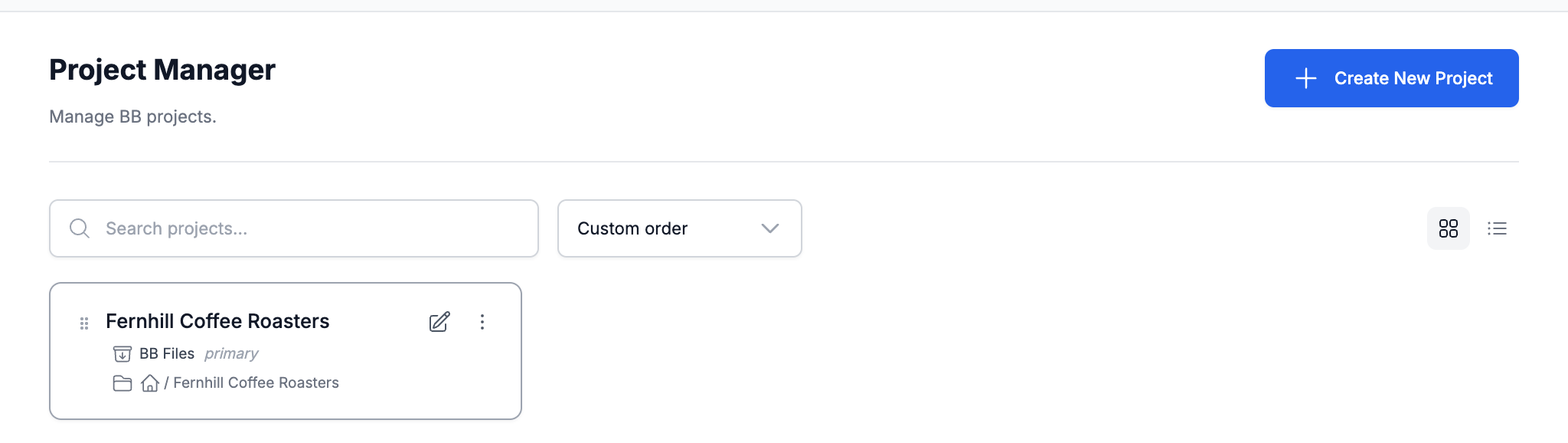
The Project Manager is your central hub for managing projects in BB. Each project can access multiple data sources including local directories, cloud platforms, and external services.
Data Sources
Filesystem
- Local directories on your system
- Automatically initialized as git repositories
- Full read/write capabilities
Cloud Sources
- Notion workspaces, MCP servers
- Remote access to documents and data
- Ideal for reference materials and collaboration
Key Features
- Create new projects
- Import existing projects
- Switch between projects
- Manage project settings
- View project status
Tools & Capabilities
Each project can customize which tools and capabilities are available to the LLM:
- Select tool sets for your workflow
- Override global tool defaults
- Create custom tool combinations
Creating Projects
Step-by-Step Guide
- Click the "Create New Project" button
Found in the top-right of the Project Manager
- Enter project name and basic settings
- Choose a descriptive name for your project
- Configure any additional project-level settings
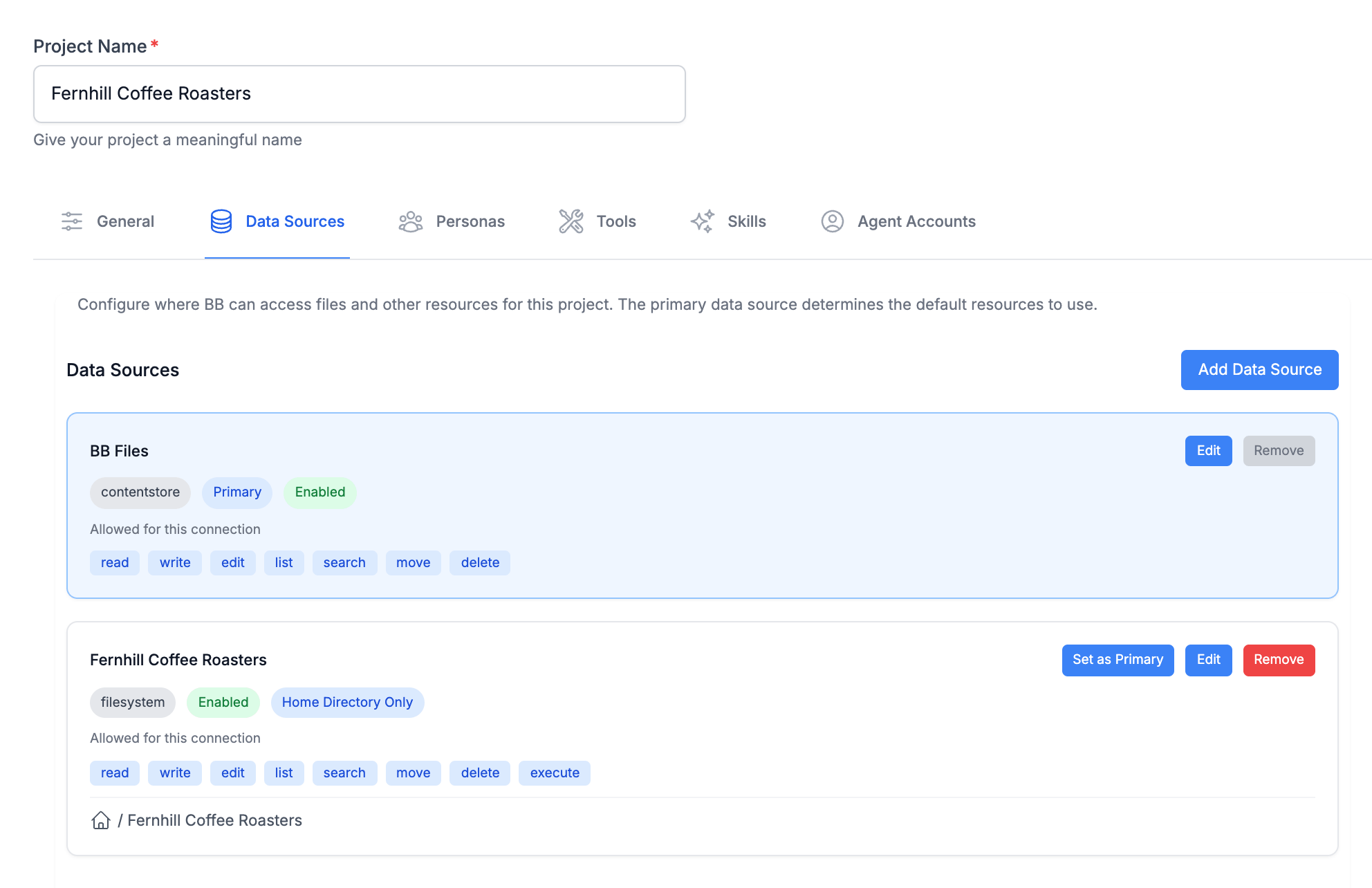
- Add your first data source
- Select data source type (Filesystem, Notion, MCP servers)
- For Filesystem: Choose an existing directory with your project files
- For Notion: Enter API key and workspace details
- For MCP: Configure server-specific settings
- Set this as your primary data source
- Configure additional data sources (optional)
- Add reference materials, documentation, or related resources
- Each data source can have different capabilities (read, write, etc.)

Important Notes:
- Every project needs at least one data source to function
- Filesystem data sources must point to existing directories
- Project names and data source configurations can be changed later
- Performance: Consider the size and complexity of your data sources, as processing time increases with project scope
Managing Projects
Project Actions
Opening Projects
- Click a project to open it
- BB loads project data sources and settings
- Start new collaboration or continue existing ones
Project Settings
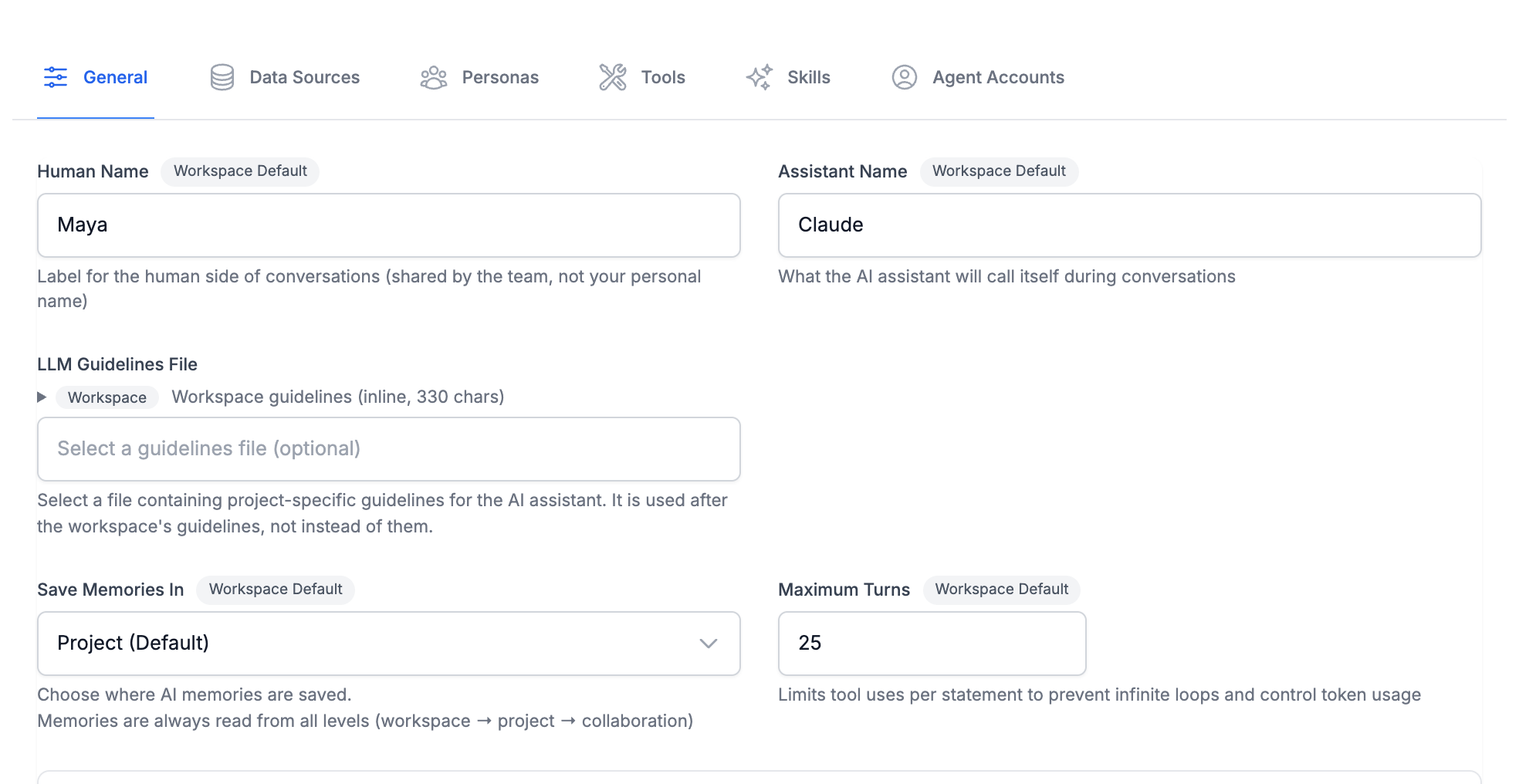
Click the settings icon for a project to open Edit Project. Its tabs are:
- General: project name and general settings, including the LLM Guidelines File and where memories are saved (Save Memories In)
- Data Sources: add, edit, or remove data sources, and set the primary one
- Personas: which model, model settings, guidelines and tool sets each role (Orchestrator, Agent, Admin) uses in this project
- Tools: project-specific tool sets, approvals, and tool configurations
- Skills: skills installed for this project
- Agent Accounts: which account agents run as in this project (saved projects; agent accounts are only available in shared team workspaces, and in a personal workspace the tab says so)
Models and Personas
A project doesn't pick models directly. Each role runs with a persona: a named setup that bundles a model and its settings (including context management), guidelines, and tool sets. By default a project uses the workspace's personas. In the project's Personas tab you can choose a different default persona for a role, or add personas just for this project.
Tools Configuration
Each project can have its own tools configuration that overrides global defaults. This allows you to tailor which capabilities the LLM has access to based on the specific needs of each project.
Project-Level Tool Settings:
- Select tool sets specific to this project's workflow
- Create custom tool sets combining tools from any source
- Configure individual tool behaviors with YAML
- Override global tool configurations when needed
How overrides work: Each setting is inherited from the workspace separately. A selected tool set list replaces the workspace list, while tool configurations combine with the workspace ones.
Workspace Defaults and Project Overrides
Throughout the Edit Project tabs, most settings show a badge:
- Workspace Default: the project uses the workspace value
- Project: the project has its own value. Click the ⊖ button next to it to reset to the Workspace Default
Removing Projects
- Click the remove icon
- Only removes the project configuration from BB
- Doesn't delete any actual files or data sources
Coming Soon:
Future updates will add support for cloud projects, enabling:
- Direct GitHub repository integration
- Cloud storage support
Best Practices
Project Organization
- Use descriptive names that reflect the project's purpose
- Group related projects logically in your project list
- Regularly clean up unused projects
- Document the purpose and scope of each project
Data Source Strategy
- Set up your primary data source as your main working directory
- Add reference materials and documentation as additional sources
- Use read-only access for shared or reference materials
- Consider which team members need access to which data sources
Performance Tips
- Keep data sources focused and well-organized
- Disable unused data sources to improve response times
- Use .gitignore and similar files to exclude irrelevant content
- Monitor the size and complexity of your data sources
Next Steps
Last updated: November 16, 2026