Questions & Approvals
Beyond Better can pause and check with you while it works. It can ask you a question when it needs a decision or information, or ask you to approve an action, such as editing a file or running a command, before it goes ahead. These requests appear as cards in your conversation, and you control them in the Tool Feedback settings.
Questions and Approvals Are Different
Questions
- BB or one of its agents asks you something, such as which option you prefer, rather than guessing
- On by default
- You answer in your own words, or decline
Approvals
- BB asks permission before it changes something, such as editing a file or running a command
- Off by default: turn on Require approval for changes, or set it up for individual tools
- You approve or reject
So with the default settings, BB asks you questions but doesn't ask before it acts. One switch, Allow questions and approval requests, governs both: turn it off and BB asks nothing at all (see Running Headless). Two other kinds of request, input requests and sign-in requests, come from connected services.
Answering a Question
A question appears as a card in the conversation, marked "Waiting for an answer." BB, or the agent that asked, waits for your reply before going on with that part of the work.
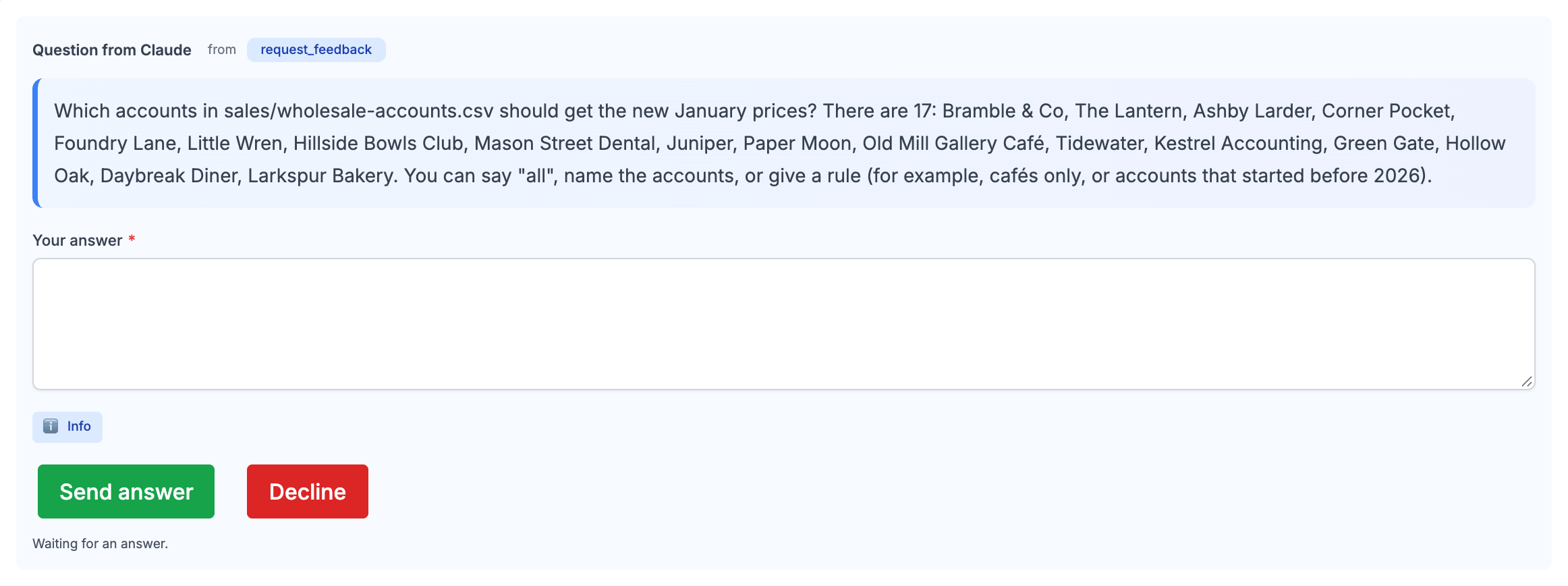
- Type your reply and choose Send answer, or Decline to let BB carry on without one.
- Anyone who can write in the conversation can answer, not only the person whose message BB is working on.
- Afterwards the card stays in the history, marked Answered, Declined, or Withdrawn (when BB no longer needs the answer).
Why Use Approvals?
Without Approvals
- The LLM edits, moves, and removes files as it works
- You review changes afterwards (for example, with git)
- Best for trusted, well-defined tasks and unattended runs
With Approvals
- BB pauses before sensitive operations and asks you
- You approve or reject each action inline in the chat
- Rejections are reported back to the LLM, so it can adjust its approach
Responding to an Approval Request
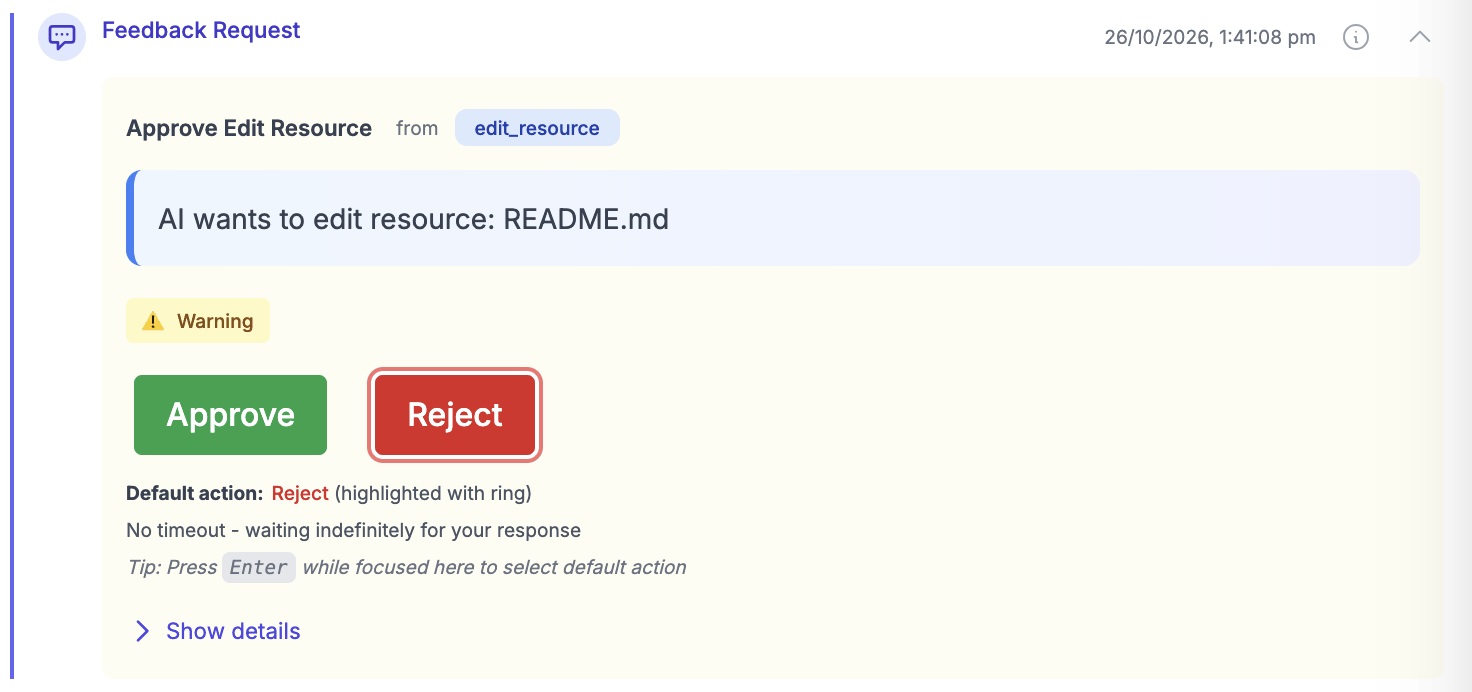
When BB needs your approval, an approval request appears in the conversation. It shows what is being requested, which tool is asking, and what will happen if you don't respond.
What You See
- Approve / Reject: Click to let the action proceed or stop it.
- Default action: The button with a ring is what happens if the request times out. Press
Enterwhile the request is focused to choose it. - Timeout: Either a countdown or "No timeout - waiting indefinitely for your response".
- Show details: Expand for more information about the requested operation.
After You Respond
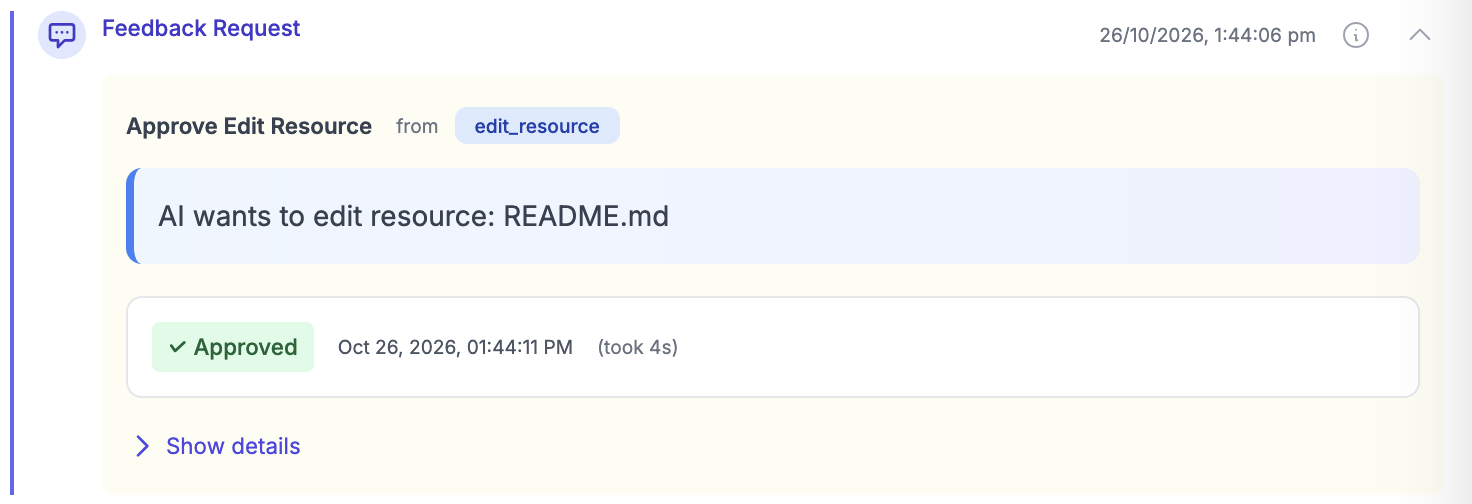
The request records your decision, when you made it, and how long it took. It stays in the conversation history.
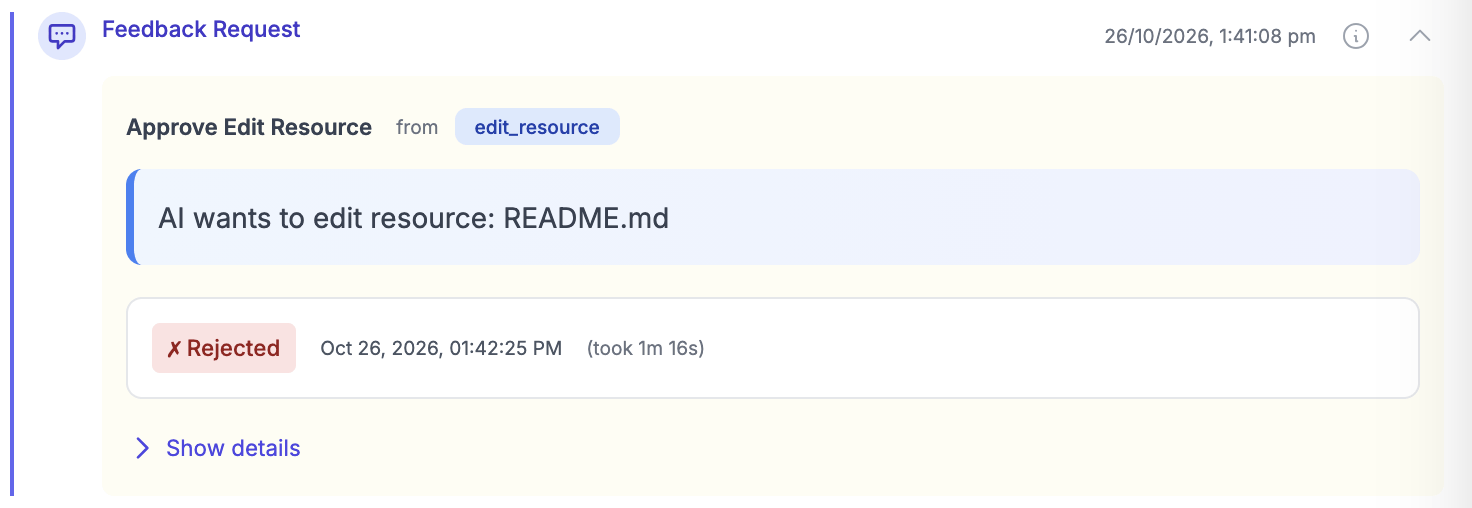
Tip: Rejecting doesn't end the collaboration. The LLM learns the operation was rejected and usually asks what you'd prefer. Follow up in chat to explain what you want instead.
Approval Requests from Agents
A persona can limit an agent to its own tools and the data sources its task needs. When an agent wants to step outside those limits, the persona decides what happens. If its Tools and data sources outside its scope control is set to Ask a person to approve each one, you get an approval request instead of the step simply being blocked.
- The card reads "Approve a step by the agent working on "task"?" and says which tool or data source the agent wants to use.
- Approve lets that one call run; Reject blocks it. Reject is the default.
- The agent shows "Waiting" until someone answers.
- If no one answers, or no one is able to, the call is blocked.
- If the agent runs as an agent account, only the person who started it, or someone whose role is at least the account's, can approve.
See Limits for how to set this up.
Input Requests
Some requests ask for information rather than a yes or no. For example, a connected MCP server might ask you to enter a company name or choose an option before it continues. These appear in the chat as a Feedback Request with a short form to fill in.
- Fill in the fields and submit to continue
- Decline if you don't want to provide the information
- Input requests always need a person to answer, so, like questions, they are unavailable when Allow questions and approval requests is off (see Running Headless)
Sign-in Requests
Some MCP servers need each person to sign in with their own account. When BB needs one of them and you haven't signed in, a Sign in to server card appears with Sign in and Not now. After you sign in, BB carries on with what it was doing. Others in the conversation see that BB is waiting for you to sign in.
See MCP Servers for more.
Tool Feedback Settings
Questions are on and approvals are off by default. Change this in the Tool Feedback section of the Tools tab, either in your workspace settings (Settings, then Workspace, then Project Defaults; applies to all projects) or when editing a project (applies to that project only).
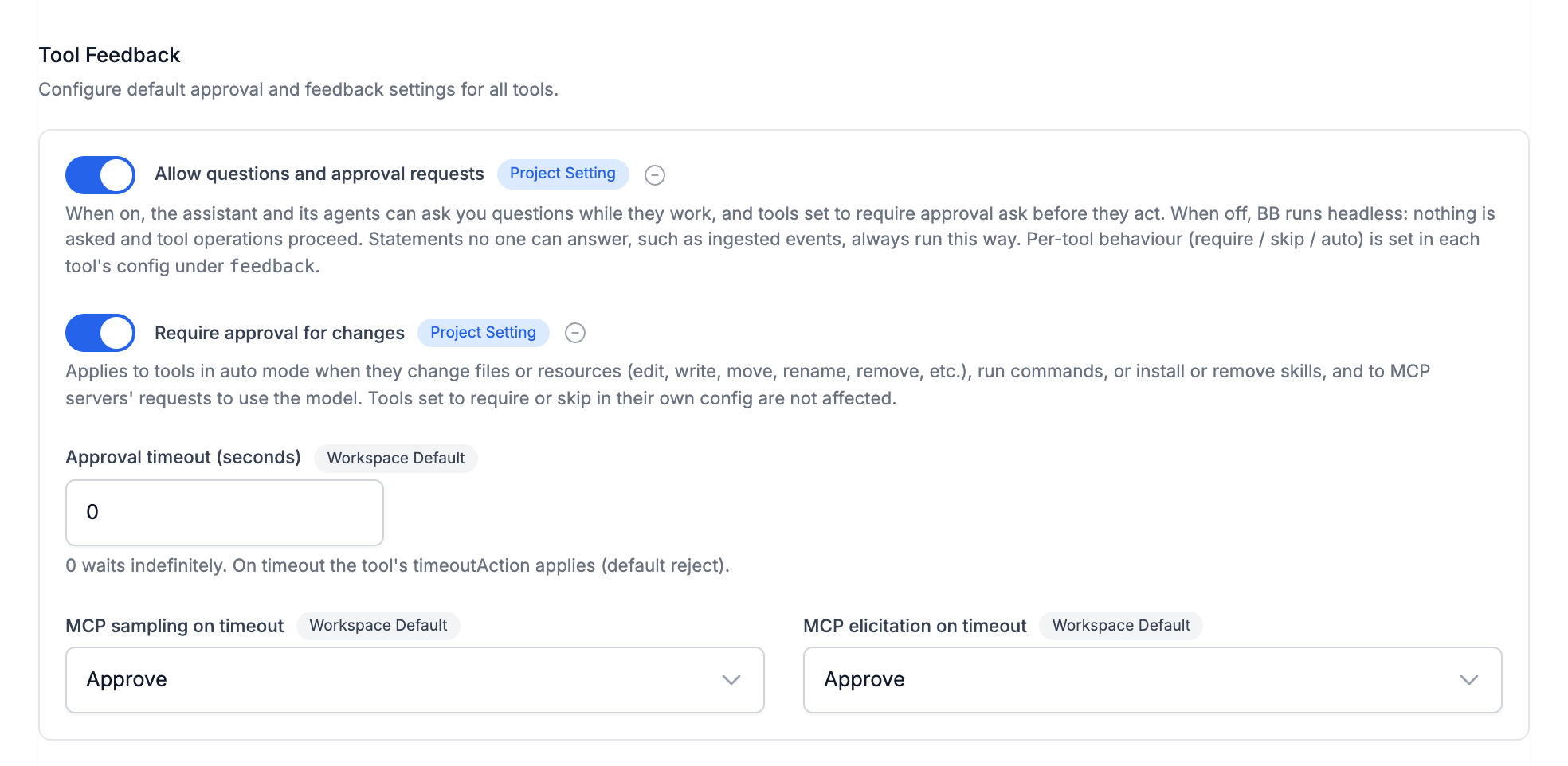
Allow questions and approval requests
The master switch, on by default. When it's on, BB and its agents can ask you questions while they work, and tools set to require approval ask before they act. On its own it doesn't make anything ask for approval: that needs Require approval for changes or a per-tool setting. When it's off, BB asks nothing (see Running Headless).
Require approval for changes
Off by default. One switch to ask for approval before everything that changes your files or resources: editing, writing, patching, moving, renaming, removing, downloading, image manipulation, running commands, installing or removing skills, and MCP servers' requests to use your LLM. It only works while Allow questions and approval requests is on.
Turn it on if you want to see changes before they happen. Read-only operations, such as loading or searching files, never ask, so you aren't interrupted while the LLM explores your project.
Approval timeout (seconds)
How long BB waits for your answer. 0 waits indefinitely. When a request times out, the tool's default action applies, which is reject unless you change it (see Per-Tool Settings).
Running Headless
When Allow questions and approval requests is off, BB runs headless: nothing is asked and tool operations go ahead. This is useful for unattended work, but be aware that:
- BB and its agents can't ask you questions
- Changes and commands go ahead without asking, even for tools set to always ask, and even if Require approval for changes is on
- MCP input requests can't be answered and will fail
- An agent's steps outside its persona's scope that are set to Ask a person to approve each one are blocked, because nobody can approve them
Some work runs with no one there to answer, such as automated runs. It behaves the same way, whatever the switch says: nothing is asked and tool operations go ahead, except agent steps that need a person's approval, which are blocked.
Workspace and Project Settings
Approval settings follow the same inheritance as other BB settings. Set your defaults once for the workspace, then override individual settings for a project.
- Workspace Default badge: the project is using the workspace value.
- Project Setting (or Project) badge: the project has its own value. Click the ⊖ button next to it to reset back to the workspace default.
- Each setting is inherited separately. For example, a project can turn on approvals while still using the workspace timeout.
See How Settings Are Inherited for the full explanation.
Coming soon: Approval settings for an individual collaboration, so you can turn approvals on or off for a single chat.
Advanced: Per-Tool Settings
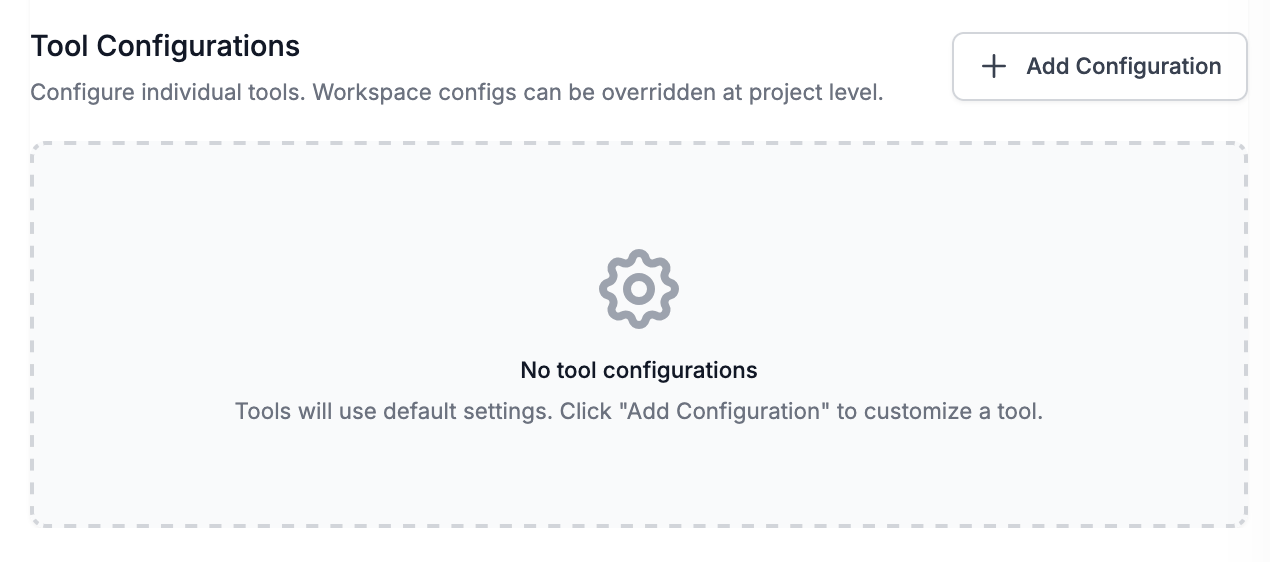
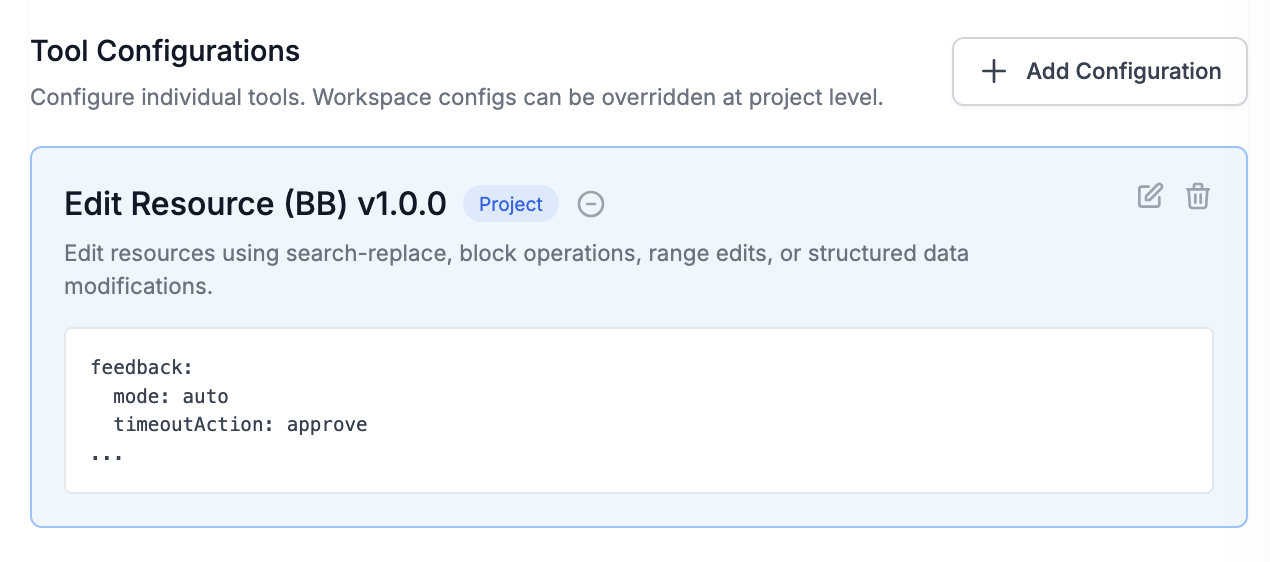
The switches above cover most needs. To fine-tune individual tools, use the Tool Configurations section, below Tool Feedback in the same Tools tab. Click Add Configuration, choose the tool, and add a feedback block to its YAML.
Feedback Options
- mode:
requirealways asks,skipnever asks, andauto(the default) asks for changes only when Require approval for changes is on. Nothing asks while Allow questions and approval requests is off. - timeoutAction:
reject(default) orapprove, what happens if you don't respond in time. - timeout: Optional. Seconds to wait for this tool, overriding the general Approval timeout.
Examples
Always ask before removing files, even when "Require approval for changes" is off:
feedback:
  mode: require
Trust a tool and never ask for it:
feedback:
  mode: skip
Ask, but approve automatically if you're away for two minutes:
feedback:
  mode: require
  timeout: 120
  timeoutAction: approve
Advanced: MCP Servers
MCP Tools
BB can't yet tell which MCP tools change things, so Require approval for changes doesn't apply to them. To be asked before an MCP tool runs, add a tool configuration for it with mode: require:
feedback:
  mode: require
Tip: This is worth doing for MCP tools that write to databases or external services, such as running SQL.
MCP Sampling and Elicitation
MCP servers can also make requests of their own:
- Sampling: the server asks to use your LLM to generate a response.
- Elicitation: the server asks you for information (an input request, as described above).
Sampling requests ask for your approval only when Require approval for changes is on. Elicitation, like a question, is asked whenever Allow questions and approval requests is on.
The MCP sampling on timeout and MCP elicitation on timeout settings choose what happens if you don't respond before the Approval timeout. Both default to Approve.
Troubleshooting
No request appears
- Check that Allow questions and approval requests is on for this project, not just the workspace (look for a Project Setting overriding it). This is needed for questions as well as approvals.
- For file changes and commands, check that Require approval for changes is on, and that the tool isn't configured with
mode: skip. - For MCP tools, add a configuration with
mode: require. - Reading and searching never ask, by design.
Actions are rejected when I step away
The Approval timeout is set and the default action is reject. Set the timeout to 0 to wait indefinitely, or set timeoutAction: approve for specific tools.
Next Steps
Tools
Choose which tools are available with tool sets and tool configurations.
Settings
Learn how workspace, project, and collaboration settings are inherited.
MCP Servers
Connect MCP servers, sign in to them, and decide which of their tools need approval.
Chat Interface
Find your way around the conversation view where requests appear.
Last updated: November 16, 2026