Personas
A persona tells Beyond Better how one role should work: which LLM it uses, which instructions it follows, which tools it has, and which limits it must keep to. Every conversation runs its orchestrator, its agents and its admin tasks with a persona.
Why Personas Matter
When you give BB a large piece of work, the orchestrator often hands parts of it to agents that work in the background. You don't direct those agents one by one: the orchestrator decides when to start them and what to ask. What you control is the personas they run as.
A persona decides an agent's LLM, the guidelines it reads, the tools it may use, how much it reports back, and hard limits such as whether it may start agents of its own. Setting up personas is how you make agents cheaper, safer, or better at a particular kind of work.
Coming from the Models tab? Personas replace the per-role model settings. The Personas tab takes the place of the old Models tab, and BB turned your existing model settings into personas automatically, so nothing changes until you edit them.
What's in a Persona
- Model: the LLM and its settings, such as temperature, response length, extended thinking, prompt caching and when context management starts. Turn on Default for role to use whatever model the role would use without a persona.
- Guidelines: extra guidelines files for this persona. They load after the workspace's and the project's guidelines, so a persona adds instructions rather than replacing them.
- Tool sets: which tool sets the role can use. Leave Use the project's tool sets on to follow the project, or choose a narrower set. The tools for starting and managing agents are always included.
- Limits: rules BB enforces whatever the LLM is told, such as whether agents may start agents of their own. Shown for personas suited to the Orchestrator or Agent role (or with no role ticked). See Limits.
- Agent report style: for Agent personas, how much an agent tells the orchestrator while it works: Final report only, Progress updates or Detailed updates.
The three roles
- Orchestrator: answers you, plans the work, and starts agents.
- Agent: works on one task the orchestrator gives it, in the background, and reports back.
- Admin: handles housekeeping such as conversation titles and summaries. A fast, inexpensive LLM is usually enough.
Each role has a default persona. A persona can be offered for any role, or only for the roles ticked under Suitable roles.
Where Personas Come From
Personas follow the same layers as other settings:
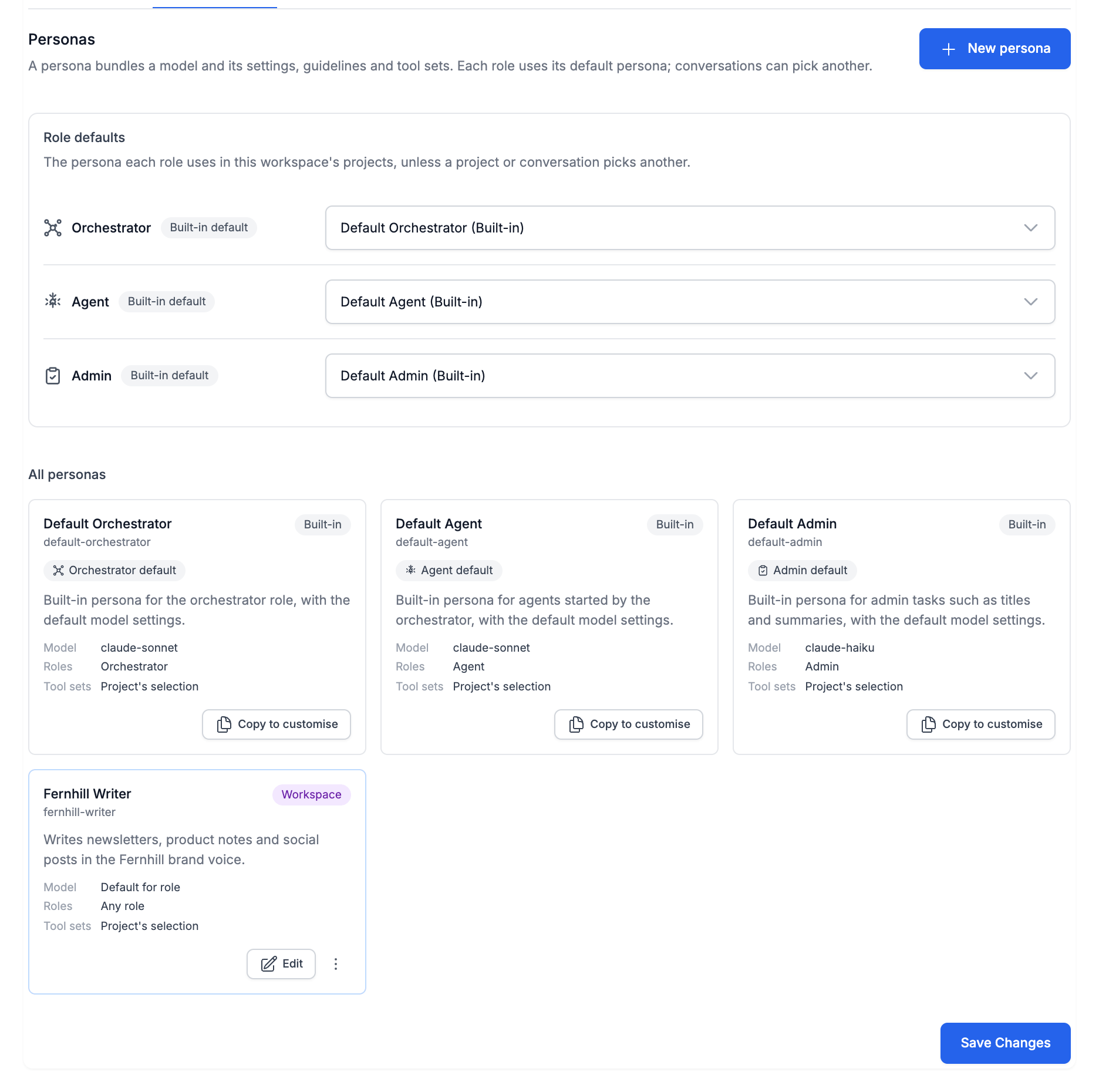
- Built-in: BB ships Default Orchestrator, Default Agent and Default Admin, each with its role's default model settings and no limits. You can't edit them, but you can copy them.
- Workspace: personas for every project in the workspace, in Settings > Workspace > Project Defaults > Personas.
- Project: personas for one project, in the project's Personas tab (Settings > Projects, then edit the project).
- Conversation: a persona chosen or customised for one conversation, in Collaboration Settings.
Personas from higher levels appear in lower ones, read-only, with a Built-in, Workspace or Project badge. To change one, click Copy to customise and edit the copy at your level.
Same ID, whole replacement. A project persona with the same ID as a workspace persona replaces it in that project. Its fields are not merged: if the project copy has no guidelines, the workspace persona's guidelines don't apply in that project. The card says "Replaces the workspace persona with the same ID in this project."
Choosing Each Role's Default
The Role defaults card at the top of the Personas tab has a drop-down for each role. New conversations use these defaults.
- In the workspace, a default shows Built-in default or Workspace setting.
- In a project, it shows Workspace default or Project setting. A reset button next to a project setting returns the role to the workspace's default.
- If a chosen persona is deleted, the role falls back to an inherited default until you choose another.
Creating and Editing Personas
- Open the Personas tab for the workspace or the project.
- Click New persona, or Copy to customise on an existing persona to start from its settings.
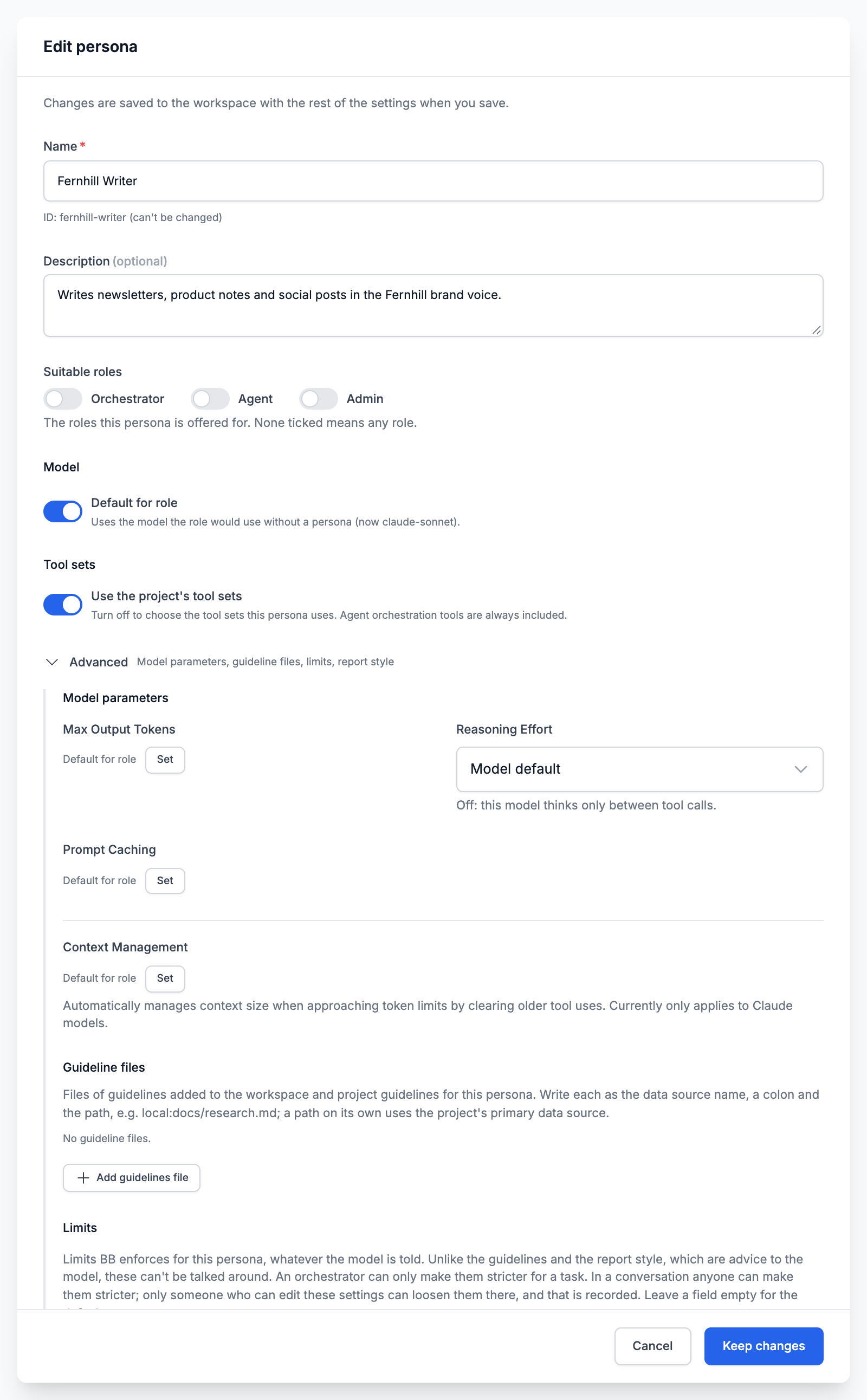
- Fill in the essentials at the top of the dialog (see below).
- Open Advanced if you need more, then click Add persona (or Keep changes when editing).
- Save the settings page.
Essentials
- Name, with its ID shown underneath. For a new persona, Change lets you pick a different ID; once saved, the ID can't be changed.
- Description
- Suitable roles
- Model
- Tool sets
- Agent service account, only for people who can bind agent accounts
Advanced
- Model parameters, such as temperature
- Guidelines files
- Limits (Orchestrator and Agent personas)
- Agent report style (Agent personas)
Advanced is collapsed, but opens by itself when anything in it is set, so you never miss a setting.
Write the description for the orchestrator. When the orchestrator starts an agent, it picks a persona from those suitable for the Agent role, using their names and descriptions. "Researcher: finds and summarises sources, never edits files" helps it choose; "My persona" doesn't. You can also ask for one in your message, for example "use the Researcher persona for the background reading".
Who can change personas: workspace personas can be changed by the workspace's team leads and owners, and by organization owners and admins. Everyone else sees them read-only. Project personas can be changed by anyone who can edit the project's settings.
Limits
Guidelines ask the LLM to behave a certain way. Limits go further: BB itself blocks anything outside them, whatever the LLM decides. They are how a workspace keeps agents safe and keeps costs bounded. You'll find them under Advanced in the persona editor, for personas suited to the Orchestrator or Agent role, or with no role ticked. Leave a field empty to use the default. Built-in personas' limits can't be loosened.
Delegation depth
How many levels of agents may run below this persona, up to 3. 0 means it can't start agents. By default an orchestrator can start agents (1 level) and agents can't start their own (0). Give an agent persona a depth of 1 or more to let its agents split their work further.
Agents at once
Lowers how many agents can run at the same time. It can only lower the limit, not raise it (see How many agents run at once).
Tools and data sources outside its scope
What happens when an agent reaches for a tool that isn't among its persona's tools, or a data source its task doesn't list:
- Not set (block them): the default.
- Block them
- Ask a person to approve each one: the agent pauses and shows "Waiting" while an approval request appears in the conversation. Approve lets that one call run. Rejecting it, no answer, or nobody being there to answer blocks it.
- Allow them (with the project's tools)
Personas it may start agents with
Which personas the agents it starts may use. With none ticked, any persona can be used. If you tick any, also tick the default agent persona, because a task without a persona uses it.
Tightening and loosening
- The orchestrator can make a persona's controls stricter for one task, never looser.
- In a conversation, anyone can make them stricter. Only someone who can edit the settings level the persona comes from can loosen them there, and BB records it.
Approval requests from agents appear like other approvals, with a title such as Approve a step by the agent working on "…"?
How Many Agents Run at Once
Up to 5 agents run at the same time in a conversation. If the orchestrator starts more, the rest wait in a queue and start as others finish. A persona's Agents at once control can lower this.
Advanced: raising the limit
To allow more, add a tool configuration for Start agents in the Tools tab (in the workspace's Project Defaults, or in a project): Tool Configurations, Add Configuration, choose Start agents, and enter:
maxConcurrentAgents: 8More agents at once means the work finishes sooner but spends credits faster. See Tools for how tool configurations work.
Personas in a Conversation
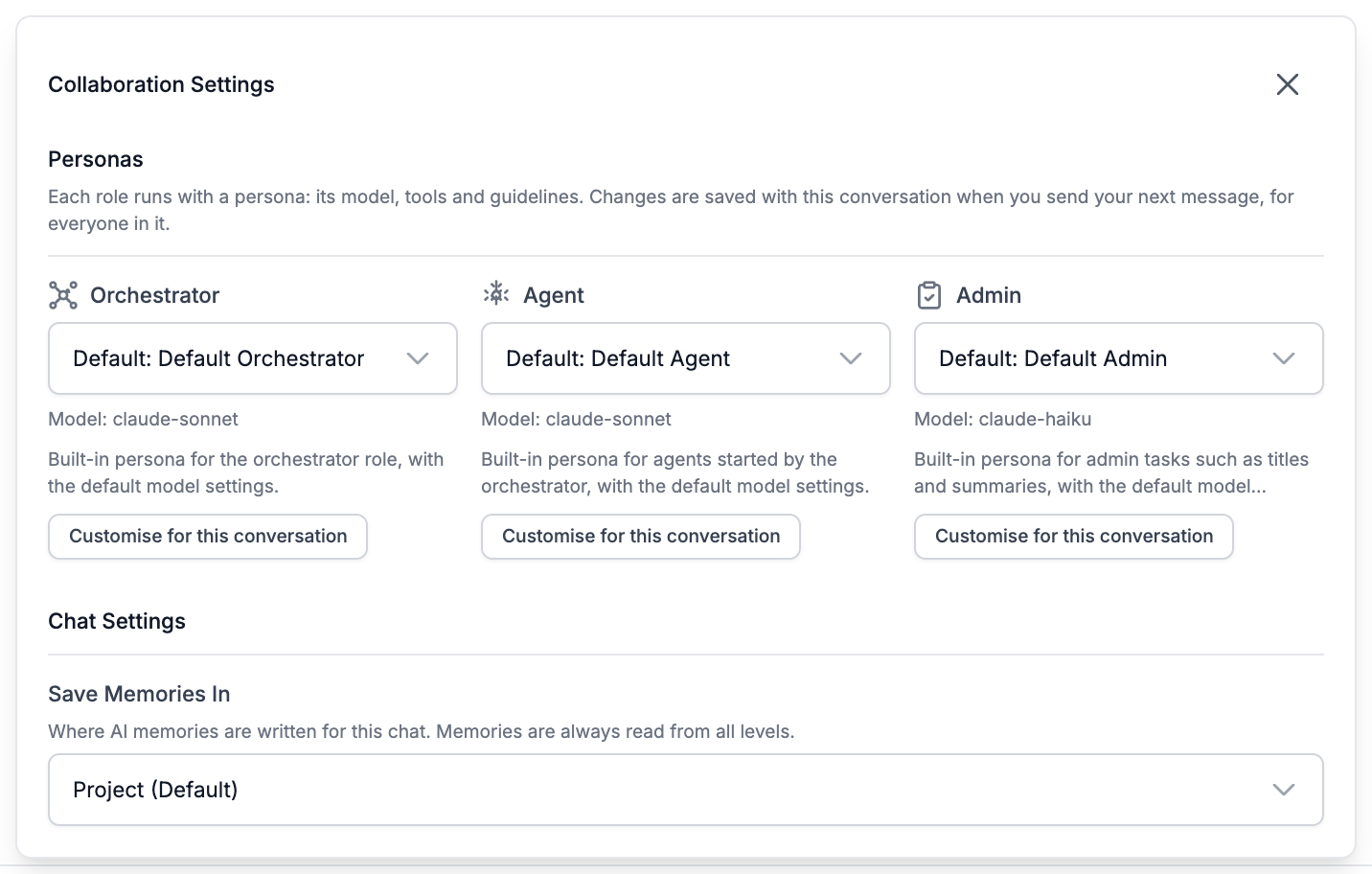
Open Collaboration Settings with the gear at the left of the message toolbar. The Personas section has a picker for each role.
- A conversation keeps its persona. Changing the workspace or project defaults doesn't change a conversation that is already running, so its work stays consistent. The picker shows the persona it uses as (in use). Choose Default: … to switch it to the current default.
- Customise for this conversation makes a copy of the persona, named "(this conversation)", whose model and model settings you can change. Its tools, guidelines and limits stay as they are, so a conversation can't quietly widen what a persona is allowed to do. Stop customising returns the role to its default persona.
- Changes apply to everyone. They are saved with the conversation when you send your next message, for everyone in it.
- Credit notice. When you switch the orchestrator's or the agents' model in a conversation that has already run, BB warns that the next message (or the next new agent) may cost more once, because it can't reuse what was cached for the previous model. Agents matter most here, because several may run at once.
More on the dialog in Chat Interface.
Personas and Agent Accounts
In a shared team workspace, a persona can be bound to an agent account, so its agents work with that account's access instead of the access of the person who started them. The field is Agent service account in the persona editor. It appears only for team leads and owners (and organization owners and admins), and only on saved custom personas.
Once a persona is bound, only those people (with a role at least as high as the account's) can change its guidelines, tool sets, tool settings and limits. Its name, description and model can still be changed as before.
Next Steps
Orchestrator & Agents
How the orchestrator starts background agents, and what you see while they work.
Agent Accounts
Let agents run with an account of their own in a shared workspace.
Tools
Tool sets and tool configurations that personas build on.
Guidelines
How workspace, project and persona guidelines combine.
Last updated: November 16, 2026